---
title: Edit and Personalize Your Profile
description: Learn how to easily manage and customize your Kitcast profile by updating your photo, password, and email address. Personalize your account for a better experience.
---
[Skip to content](https://knowledgebase.kitcast.tv/edit-and-personalize-your-profile#main-content)
English
Show submenu for translations
Open main navigation
Close main navigation
- English
Show submenu for translations
How can we help you today?
- There are no suggestions because the search field is empty.
1. [Kitcast v.2](https://knowledgebase.kitcast.tv/?hsLang=en)
2. [Account Management](https://knowledgebase.kitcast.tv/account-management?hsLang=en)
3. [Profile & Security Settings](https://knowledgebase.kitcast.tv/account-management?hsLang=en#profile-security-settings)
# Edit and Personalize Your Profile
To personalize your account, consider updating your photo, password, and email address.
Here are some easy steps to make these updates on the current page:
- **Locate your profile settings:**
First, find the account settings on the current page. This is located in the bottom left corner, represented by your current photo icon (or it’s blank if you haven’t set this up yet). Click on this icon and proceed to the “Profile” tab.
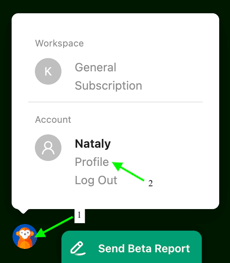
- **Change your photo:**
1. In the top section of the current menu, find the section related to your photo.
2. Click on the "Upload" if it’s blank and you want to set it up or click on the current photo if it’s uploaded and you want to change it.
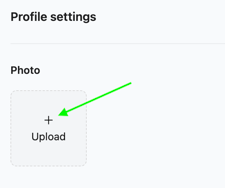
3. A file explorer window will open, allowing you to browse your computer or device for the new image you want to use as your avatar.
4. Select your desired image and click "Open" or "Upload."
- **Modify your email address:**
1. Find the Email section of the Profile page. Tap the "Change Email" button to change the email.
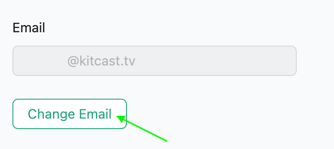
2. Enter your new email address in the provided field.
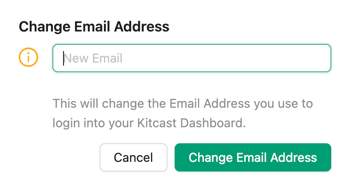
3. Click the "Save" button to finalize the change. Note that you may receive an email at the new address asking you to verify the update.
4. Follow the instructions in the email to complete the process.
Congratulations! You've successfully updated your photo and email address on your Kitcast profile.
Enjoy your personalized account and enhanced security.
- [Getting Started with Kitcast](https://knowledgebase.kitcast.tv/getting-started-with-kitcast?hsLang=en)
- [Kitcast AI](https://knowledgebase.kitcast.tv/kitcast-ai?hsLang=en)
- [Kitcast API](https://knowledgebase.kitcast.tv/kitcast-api?hsLang=en)
- [Features & Functionality](https://knowledgebase.kitcast.tv/features-functionality?hsLang=en#main-content)
- [Content Management](https://knowledgebase.kitcast.tv/features-functionality?hsLang=en#content-management)
- [Widgets](https://knowledgebase.kitcast.tv/features-functionality?hsLang=en#widgets)
- [Screen Management](https://knowledgebase.kitcast.tv/features-functionality?hsLang=en#screen-management)
- [Account Management](https://knowledgebase.kitcast.tv/account-management?hsLang=en#main-content)
- [Subscription & Billing](https://knowledgebase.kitcast.tv/account-management?hsLang=en#subscription-billing)
- [Profile & Security Settings](https://knowledgebase.kitcast.tv/account-management?hsLang=en#profile-security-settings)
- [Troubleshooting & Technical Support](https://knowledgebase.kitcast.tv/troubleshooting-technical-support?hsLang=en)
- [Device Configuration: Kitcast Deployment through MDM](https://knowledgebase.kitcast.tv/device-configuration-kitcast-deployment-through-mdm?hsLang=en)
- [Frequently Asked Questions](https://knowledgebase.kitcast.tv/frequently-asked-questions?hsLang=en#main-content)
- [General FAQs](https://knowledgebase.kitcast.tv/frequently-asked-questions?hsLang=en#general-faqs)
- [Additional Functionality](https://knowledgebase.kitcast.tv/frequently-asked-questions?hsLang=en#additional-functionality)
- [Legal](https://knowledgebase.kitcast.tv/legal?hsLang=en)
[](https://kitcast.tv)
© 2026 Kitcast. All rights reserved.
[mailto:support@kitcast.tv](mailto:support@kitcast.tv)
[Terms and Conditions](https://knowledgebase.kitcast.tv/end-user-license-agreement-terms-and-conditions?hsLang=en)
[Privacy Policy](https://knowledgebase.kitcast.tv/privacy-policy?hsLang=en)