---
title: How to Add a Google Slides Presentation to a Playlist in Kitcast
description: Learn how to add and display Google Slides presentations in Kitcast using Google Drive, PDF upload, or a public link.
---
[Skip to content](https://knowledgebase.kitcast.tv/how-to-add-a-google-slides-presentation-to-a-playlist-in-kitcast#main-content)
English
Show submenu for translations
Open main navigation
Close main navigation
- English
Show submenu for translations
How can we help you today?
- There are no suggestions because the search field is empty.
1. [Kitcast v.2](https://knowledgebase.kitcast.tv/?hsLang=en)
2. [Features & Functionality](https://knowledgebase.kitcast.tv/features-functionality?hsLang=en)
3. [Widgets](https://knowledgebase.kitcast.tv/features-functionality?hsLang=en#widgets)
# How to Add a Google Slides Presentation to a Playlist in Kitcast
## You can display Google Slides presentations in Kitcast in three simple ways.
### 1. Google Account + Document Widget
Connect your Google account to Kitcast, then select your presentation directly from Google Drive.
1. [Connect your Google account to Kitcast](https://knowledgebase.kitcast.tv/connecting-instagram-twitter-x-google-microsoft-and-dropbox-to-kitcast?hsLang=en).
2. Open your playlist and go to the **App List** on the right side of the Dashboard.
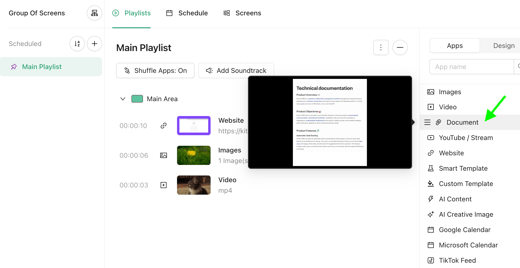
3. Select **Document** and click your **Google account integration**.
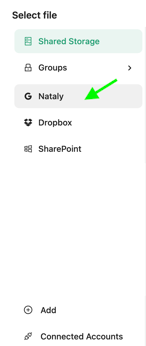
4. Use the Google Picker to find your presentation. You can use **Search** to find it faster.
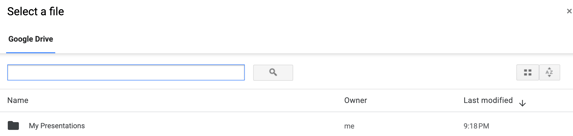
5. Select the file you want and click **Select**.
Your presentation will be added to the playlist.
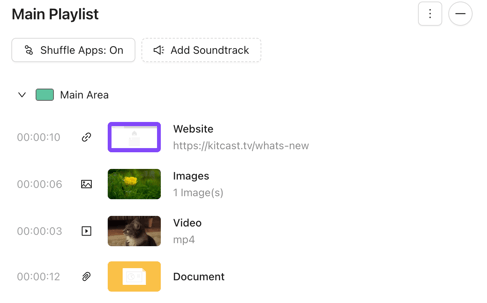
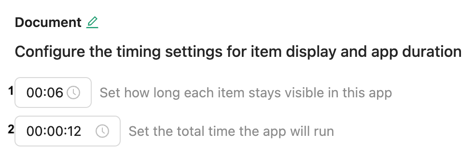
Click the created **Document** widget to set how long your presentation should be displayed:
1. Set a duration **per page/slide**.
2. Set the duration for the **entire presentation**.
### 2. Add Google Slides as a PDF
You can also download your presentation as a PDF and upload it to Kitcast.
1. Open your presentation in Google Slides.
2. Go to **File → Download → PDF Document (.pdf)**.
3. In Kitcast, open your playlist and select **Document** from the **App List**.
4. Upload your PDF.
### 3. Add Google Slides Using a Public Link
If your presentation is published publicly, you can also try displaying it with the **Website** widget.
1. Copy the public URL of your Google Slides presentation.
2. Open your playlist in Kitcast.
3. Select **Website** from the **App List**.
4. Enter the public URL and add the widget.
### Which option should I use?
- **Google Drive:** Best for presentations that you update regularly. Changes can sync automatically.
- **PDF:** Best for a static presentation.
- **Public link:** A simple option for publicly available presentations.
- [Getting Started with Kitcast](https://knowledgebase.kitcast.tv/getting-started-with-kitcast?hsLang=en)
- [Kitcast AI](https://knowledgebase.kitcast.tv/kitcast-ai?hsLang=en)
- [Kitcast API](https://knowledgebase.kitcast.tv/kitcast-api?hsLang=en)
- [Features & Functionality](https://knowledgebase.kitcast.tv/features-functionality?hsLang=en#main-content)
- [Content Management](https://knowledgebase.kitcast.tv/features-functionality?hsLang=en#content-management)
- [Widgets](https://knowledgebase.kitcast.tv/features-functionality?hsLang=en#widgets)
- [Screen Management](https://knowledgebase.kitcast.tv/features-functionality?hsLang=en#screen-management)
- [Account Management](https://knowledgebase.kitcast.tv/account-management?hsLang=en#main-content)
- [Subscription & Billing](https://knowledgebase.kitcast.tv/account-management?hsLang=en#subscription-billing)
- [Profile & Security Settings](https://knowledgebase.kitcast.tv/account-management?hsLang=en#profile-security-settings)
- [Troubleshooting & Technical Support](https://knowledgebase.kitcast.tv/troubleshooting-technical-support?hsLang=en)
- [Device Configuration: Kitcast Deployment through MDM](https://knowledgebase.kitcast.tv/device-configuration-kitcast-deployment-through-mdm?hsLang=en)
- [Frequently Asked Questions](https://knowledgebase.kitcast.tv/frequently-asked-questions?hsLang=en#main-content)
- [General FAQs](https://knowledgebase.kitcast.tv/frequently-asked-questions?hsLang=en#general-faqs)
- [Additional Functionality](https://knowledgebase.kitcast.tv/frequently-asked-questions?hsLang=en#additional-functionality)
- [Legal](https://knowledgebase.kitcast.tv/legal?hsLang=en)
[](https://kitcast.tv)
© 2026 Kitcast. All rights reserved.
[mailto:support@kitcast.tv](mailto:support@kitcast.tv)
[Terms and Conditions](https://knowledgebase.kitcast.tv/end-user-license-agreement-terms-and-conditions?hsLang=en)
[Privacy Policy](https://knowledgebase.kitcast.tv/privacy-policy?hsLang=en)