---
title: Playing YouTube Videos and Live Streams on Your Screen with Kitcast
description: Learn how to play YouTube videos and live streams on your Kitcast screen.
---
[Skip to content](https://knowledgebase.kitcast.tv/playing-youtube-videos-on-your-screen-with-kitcast#main-content)
English
Show submenu for translations
Open main navigation
Close main navigation
- English
Show submenu for translations
How can we help you today?
- There are no suggestions because the search field is empty.
1. [Kitcast v.2](https://knowledgebase.kitcast.tv/?hsLang=en)
2. [Features & Functionality](https://knowledgebase.kitcast.tv/features-functionality?hsLang=en)
3. [Content Management](https://knowledgebase.kitcast.tv/features-functionality?hsLang=en#content-management)
# Playing YouTube Videos and Live Streams on Your Screen with Kitcast
## With Kitcast, you can easily play YouTube videos and live streams on your screens. Here’s how to set it up in just a few steps.
### **How to Play a YouTube Video**
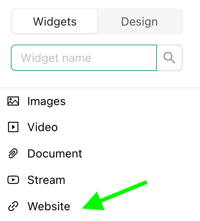
1. Head over to **Widgets** in Kitcast.
2. Select the **Website Widget:**
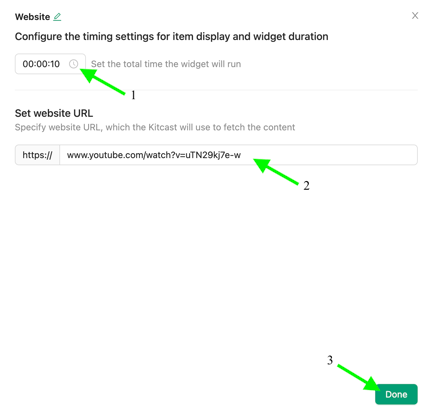
3. **Set the total time** the widget will run.
4. Paste the **YouTube video link** you want to display.
5. **Press "Done"** to save the changes:
### **How to Play a Live Stream**
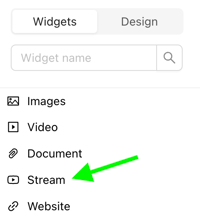
1. Go to **Widgets** in Kitcast.
2. Choose the **Stream Widget:**
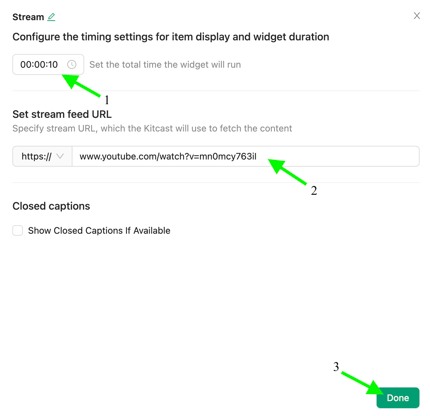
3. **Set the total time** the widget will run.
4. Paste the **live stream link**, and you're all set!
5. (Optional) **Check "Show Closed Captions If Available"**.
6. **Press "Done"** to save the changes:
### **Scheduling a Live Stream for a Specific Date & Time**
If you need to **play a live stream at a specific time on a specific day**, you can do this using Kitcast’s **scheduling feature**:
- **Create a separate playlist** with the live stream link.
- **Schedule** the day and time you want it to play.
- *(Optional)* Set an **expiration date** for the playlist—this ensures the stream plays only at the designated time and then automatically disappears when it's no longer relevant.
This can be particularly useful for **one-time events or scheduled live streams** that should only be displayed within a certain timeframe.
For more details, check out these guides:
📌 [How to Organize Your Playback Schedule](https://knowledgebase.kitcast.tv/organize-your-playback-schedule?hsLang=en)
📌 [How to Set Expiration Dates for Playlists & Media Items](https://knowledgebase.kitcast.tv/set-expiration-dates-for-playlists-and-or-media-items?hsLang=en)
### **Want to Use YouTube as an Audio Source?**
You can also use YouTube videos as a **soundtrack** for your playlist. Check out this guide to learn how:
📌 [How to Add a Soundtrack to Your Playlist in Kitcast](https://knowledgebase.kitcast.tv/add-a-soundtrack-to-your-playlist-in-kitcast?hsLang=en)
- [Getting Started with Kitcast](https://knowledgebase.kitcast.tv/getting-started-with-kitcast?hsLang=en)
- [Kitcast AI](https://knowledgebase.kitcast.tv/kitcast-ai?hsLang=en)
- [Kitcast API](https://knowledgebase.kitcast.tv/kitcast-api?hsLang=en)
- [Features & Functionality](https://knowledgebase.kitcast.tv/features-functionality?hsLang=en#main-content)
- [Content Management](https://knowledgebase.kitcast.tv/features-functionality?hsLang=en#content-management)
- [Widgets](https://knowledgebase.kitcast.tv/features-functionality?hsLang=en#widgets)
- [Screen Management](https://knowledgebase.kitcast.tv/features-functionality?hsLang=en#screen-management)
- [Account Management](https://knowledgebase.kitcast.tv/account-management?hsLang=en#main-content)
- [Subscription & Billing](https://knowledgebase.kitcast.tv/account-management?hsLang=en#subscription-billing)
- [Profile & Security Settings](https://knowledgebase.kitcast.tv/account-management?hsLang=en#profile-security-settings)
- [Troubleshooting & Technical Support](https://knowledgebase.kitcast.tv/troubleshooting-technical-support?hsLang=en)
- [Device Configuration: Kitcast Deployment through MDM](https://knowledgebase.kitcast.tv/device-configuration-kitcast-deployment-through-mdm?hsLang=en)
- [Frequently Asked Questions](https://knowledgebase.kitcast.tv/frequently-asked-questions?hsLang=en#main-content)
- [General FAQs](https://knowledgebase.kitcast.tv/frequently-asked-questions?hsLang=en#general-faqs)
- [Additional Functionality](https://knowledgebase.kitcast.tv/frequently-asked-questions?hsLang=en#additional-functionality)
- [Legal](https://knowledgebase.kitcast.tv/legal?hsLang=en)
[](https://kitcast.tv)
© 2026 Kitcast. All rights reserved.
[mailto:support@kitcast.tv](mailto:support@kitcast.tv)
[Terms and Conditions](https://knowledgebase.kitcast.tv/end-user-license-agreement-terms-and-conditions?hsLang=en)
[Privacy Policy](https://knowledgebase.kitcast.tv/privacy-policy?hsLang=en)