Available on Pro and Enterprise plans.
In this article:
What can you do with screen tags?
How to add tags to your screens
Send content to tagged screens with a Smart Group
What can you do with screen tags?
Find screens in seconds. Filter the Screens list by a tag and see, for example, every menu board across all your locations at once. Works on desktop and in the mobile dashboard.
Send content by tag, not by group. A Smart Group collects screens by what they are, not where they live. Tell it "every screen tagged menu-board", schedule a playlist on it, and that playlist plays on all of them. Your screens stay in their regular groups, and a new screen gets the content the moment you tag it.
How to add tags to your screens
-
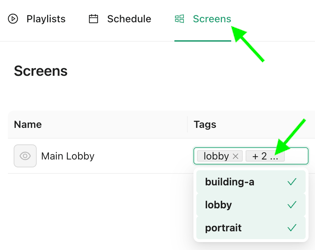
Go to Screens. Open All screens, or a specific group.
- Find the screen and click into its Tags field.
- Type a tag and press Enter. Add as many tags as you like: one screen can be
lobby,portraitandbuilding-aat the same time. - To remove a tag, click the × next to it.
Tip: tag screens the moment you add them. It takes five seconds then and saves an afternoon later.
Send content to tagged screens with a Smart Group
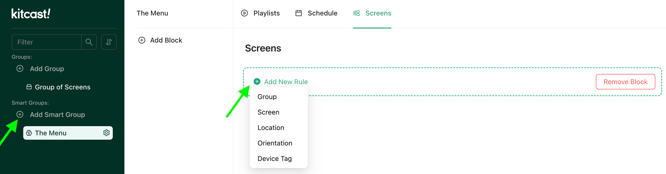
Smart Groups let you target screens automatically based on criteria such as tags, groups, locations, and orientation. This is especially useful when you need to deliver the same content to screens across multiple locations without reorganizing your existing groups.
How to create a Smart Group
- Open Smart Groups in your Kitcast dashboard.
- Create a new Smart Group and give it a descriptive name.
- Add the criteria that determine which screens should be included.
- Save the Smart Group.
- Use the Smart Group when setting up the playlist or schedule you want to deliver to those screens.
For example, you could create a Smart Group for all screens tagged menu-board. When you add or update screens that match the criteria, they can be included automatically without manually selecting each screen.
From now on you manage targeting with tags alone. Tag a new screen menu-board, and it starts playing the lunch menu at the next window. Remove the tag, and it drops out.
How Smart Group criteria work
Smart Groups can use different types of criteria to help you target the right screens.
Available criteria
- Group: Target screens in a specific group, including its subgroups.
- Screen: Select specific screens.
- Location: Target screens by city.
- Orientation: Choose screens with a specific orientation: Horizontal, Vertical 90°, Horizontal upside-down, or Vertical −90°.
- Device Tag: Target screens using custom tags.
Combine criteria to target the right screens
You can combine criteria to create more precise targeting rules:
- Multiple values in one rule: A screen can match any of the selected values.
- Separate rules in the same block: A screen must match all the rules.
- Is Not: Excludes screens that match the selected value.
- Multiple criteria blocks: A screen only needs to match one of the blocks.
Example: Target portrait screens in your lobby
To target screens in your lobby that use a vertical orientation, add these two rules to the same criteria block:
- Device Tag is
lobby - Orientation is
Vertical
A screen must match both rules to be included in the Smart Group.
Schedule content for a Smart Group
You can schedule a playlist for a Smart Group so that matching screens display the content during a specific time window.
For example, you could schedule a menu playlist for weekdays from 11:30 AM to 2:00 PM. The playlist will be targeted to the screens that match the Smart Group criteria.
This is useful when the same content needs to appear at specific times across multiple locations, without having to configure each screen separately.
How Kitcast handles overlapping schedules
If multiple playlists or schedules apply to the same screen at the same time, Kitcast follows a priority order to determine what to display.
- Override (forced) playlists take priority. A playlist forced on a screen, group, or parent group overrides other content, including Smart Group schedules.
- Active Smart Group schedules come next. An active Smart Group schedule takes priority over the schedule of its own group. If multiple Smart Group schedules are active, the most recently created one takes priority.
- Group schedules follow. If no Smart Group schedule is active, Kitcast uses the group’s schedule, followed by any applicable parent group schedules.
- The Main playlist is the fallback. If no applicable schedule is active, the screen displays its Main playlist.
When a Smart Group schedule ends, the screen returns to its regular schedule.
Tip: want to mix Smart Group content with your regular content? Enable Mix with overlying to mix Smart Group content with the underlying active group schedule or Main playlist instead of replacing it. Paused playlists are skipped during playback.
Ideas to get you started
| Use case | Example tag | How to use it |
|---|---|---|
| Lobby announcements | lobby |
Deliver welcome messages or announcements to reception screens. |
| Menu boards | menu-board |
Schedule menu content for screens displaying menus. |
| Internal communications | staff-only |
Target screens used for employee communications. |
| Floor-specific content | floor-2 |
Send relevant content to screens on the second floor. |
| Portrait displays | portrait-content |
Combine this tag with a vertical orientation criterion to target portrait screens. |
Naming tags that stay useful
A consistent naming system makes tags easier to manage as your screen network grows.
- Keep names short and clear. Use names such as
lobby,menu-board, orfloor-2. - Choose names based on purpose. Decide whether your tags describe a screen’s location, content, audience, or another characteristic.
- Be consistent. Use the same naming style across your organization. For example, use
floor-1,floor-2, andfloor-3rather than mixing different formats. - Use multiple tags when needed. A screen can have tags describing different characteristics, such as
lobbyandfloor-2. - Plan for growth. Choose names that will still make sense as you add more screens and locations.
FAQ
Does a screen leave its group when I tag it or add it to a Smart Group? No. Tags and Smart Groups never move screens. A screen stays in its regular group and simply also matches the Smart Group.
Can a screen have several tags? Yes, as many as you need.
What happens when I remove a tag? The screen stops matching any Smart Group that relies on that tag, so that Smart Group's playlists stop playing on it.
What plays if a screen matches a Smart Group window and its own group's schedule at the same time? The Smart Group schedule takes priority over the group’s regular schedule.
If a Smart Group uses two tags, does a screen need both or just one? If you set up two separate rules, the screen must match both tags. If you add two tags as values in a single rule, matching either tag is enough.
How do Smart Group criteria work when combining multiple rules? It depends on how you set up the criteria. Separate rules in the same criteria block require a screen to match all rules. Multiple values in a single rule require a match with just one value. If you use multiple criteria blocks, a screen only needs to match one block.
Which plans include tags and Smart Groups? Pro and Enterprise. On Starter, upgrade to Pro to use them.
Related articles: Create & Manage Groups and Subgroups in Kitcast · Organize Your Playback Schedule · Vertical (Portrait) & Horizontal (Landscape) Modes