What is Sync Playback?
Sync Playback keeps all compatible screens within the same Screen Group playing content at the same time.
This is especially useful if you have multiple displays next to each other and want videos, images, and other content to appear simultaneously across all screens.
Once enabled for a Group, Sync Playback automatically applies to all playlists assigned to that Group, including scheduled playlists.
How to Enable Sync Playback
Option 1: Using the Group Settings Menu
- Open the Groups section in your Kitcast Dashboard.
- Find the Screen Group you want to update.
- Click the Settings (⚙️) menu next to the Group.
- Select Turn Sync On.
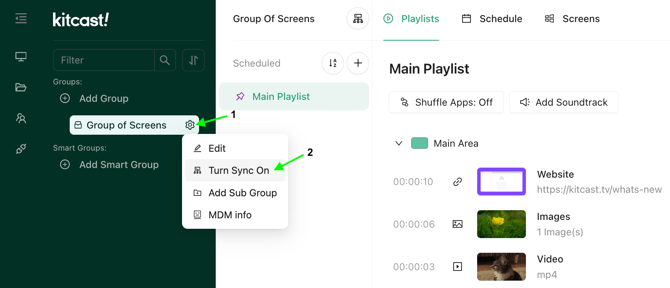
To disable synchronization later, open the same menu and select Turn Sync Off.
Option 2: Using the Sync Playback Icon
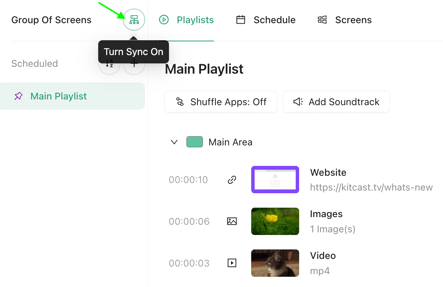
You can also click the Sync icon next to a Group name to quickly turn synchronization on or off without opening the Group settings menu.
What Happens When Sync Playback is Enabled?
When Sync Playback is turned on:
- All compatible screens in the Group play content in sync.
- The setting applies to all current and scheduled playlists assigned to the Group.
- Switching between playlists does not affect synchronization.
- New screens added to the Group automatically follow the Group's Sync Playback setting.
- Screens removed from the Group are no longer synchronized with the rest of the Group.
Important: Shuffle Apps and Sync Playback
For Sync Playback to work correctly, all screens must play the same content in the same order.
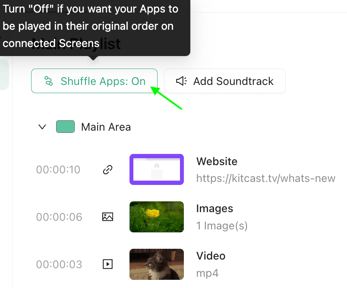
Because of this, Sync Playback is not compatible with Shuffle Apps feature.
When Shuffle Apps is enabled, content is displayed in a random order, which prevents screens from staying synchronized.
If you want all screens to show the same content at the same time:
✅ Enable Sync Playback
❌ Do not use Shuffle Apps
Frequently Asked Questions
1) Does Sync Playback work with scheduled playlists?
Yes. Sync Playback applies to all playlists assigned to the Group, including scheduled playlists.
2) Do I need to enable Sync Playback for every playlist?
No. Sync Playback is configured once at the Group level and automatically applies to all playlists used by that Group.
3) What happens when I add a new screen to a synchronized Group?
The screen automatically inherits the Group's Sync Playback setting and joins the synchronized playback.
4) What happens if I remove a screen from the Group?
The screen will no longer participate in synchronized playback.
5) My screens are not synchronized. What should I check?
Please verify the following:
- All screens are in the same Screen Group.
- Sync Playback is enabled for that Group.
- Shuffle Apps is disabled.
- The screens are playing the same content.
- The Kitcast app is up to date on all screens.
If the issue persists, please contact our support team at support@kitcast.tv and we'll be happy to help.